7.6 KiB
7.6 KiB
The Odin Project
How to ask good programming questions
- Be very specific and patient
- use screenshots when available
- ask questions directly instead of asking to ask ie. "are there any java experts around?"
Git
Set up Git
- Set username and email
git config --global user.name "username"
git config --global user.email "email"
- If using GitHub, change branch from 'master' to 'main'
git config --global init.defaultBranch main
- Enable colorful output with git
git config --global color.ui auto
- Set default branch reconciliation behavior to merging
git config --global pull.rebase false
- Verify the config
git config --get user.name
git config --get user.email
Create an SSH Key for repos
- SSH keys are good for avoiding retyping credentials every time
- Check to see if there is an existing ssh key
ls ~/.ssh/id_ed25519.pub
- if nothing appears, then there is no key and one needs to be made
- Create ssh key
ssh-keygen -t ed25519 -C <youremail>
- press enter when asked for what location to store it unless you have a specific location
- add a passphrase and retype it
Link SSH key to Git
- Find the ssh key input on GitHub or repository website of your choice
- Click on new ssh key and give it a name and leave the window open for the next steps
- Copy the public SSH key
cat ~/.ssh/id_ed25519.pub
- Paste the key into your settings, it should start with
ssh-ed25519and end with your email
Change git repository remote
git remote set-url origin https://'username':'password'@repositorylink
Using Git
- Check git version by using
git --version - After creating a new repository you can clone it to your current directory by using
git clone <repolink> - After the cloning, check the url with
git remote -v - Use
git statusto check the status of the current files within your directory - To commit to the repo you can use
git commit -m "Add helloworld.txt" - Confirm with
git status - You can use
git logto view the most recent commits - After creating a file you can use
git add <filename>to add that specific file orgit add .to add all files within the directory that are not on the repo - We can push the changes to the cloud repository with
git push origin main, origin being the remote location and main being the branch to upload to- Make sure to only push working code
Git Best Practices
- Atomic commits
- A commit that includes changes related to only one feature or task of your program.
- Easily reversible if the commit causes breaking changes
- Enables you to write more specific commit messages
- A commit that includes changes related to only one feature or task of your program.
Changing the Git Commit Message Editor
- Typing
git config --global core.editor "code --wait"into the terminal will give you the option to use eithergit commit -m <your message here>orgit commitwithout anything extra.
Introduction to HTML And CSS
- What is HTML?
- Stands for Hypertext Markup Language
- It's the raw data that a webpage is built out of. Includes:
- text
- links
- cards
- lists
- buttons
- What is CSS?
- Stands for Cascading Style Sheets
- It's the styling of the HTML page
- Controls colors
- Controls Positioning of text and font
- HTML and CSS are not programming languages, technically speaking because they only present information and are not used to compute any logic
- JavaScript would be a programming language that leverages both HTML and CSS
Elements and Tags
- HTML defines the structure and content of webpages.
- HTML elements are used to create:
- paragraphs
- headings
- lists
- images
- links
- Elements are simply pieces of content wrapped in opening and closing tags
- Another way to define them is containers for content
- Paragraph is
<p> </p> - Some tags do not require a closing tag
- line break is
<br>or<br /> - image insert would be
<img />or<img>
- There many tags, looking at documentation for most of them is standard HTML Elements
- Intro to HTML Video 3:42
HTML Boilerplate
- All HTML docs have the same basic structure that needs to be in place before anything useful can be done.
The DOCTYPE
- Every HTML page starts with a doctype declaration
- The purpose of it is to tell the browser what version of HTML it should use to render the document(current being HTML5)
- HTML5 Doctype is
<!DOCTYPE html>
- HTML5 Doctype is
- The doctypes for older version of HTML were more complicated
- Example of doctype for HTML4
<!DOCTYPE HTML PUBLIC "-//W3C//DTD HTML 4.01 Transitional//EN" "http://www.w3.org/TR/html4/loose.dtd">
HTML Element
- Now we need to provide an
<html>element. More commonly known as the root element of the document- root means that every other element in the document will be a descendant of that one
- The
langattribute specifies the language of the text content in that element- primarily used for improving accessibility of the webpage
enis used for English
- The
<head>element is where important meta-information about our webpages and items required for our webpages to render correctly in the browser- inside of the
<head>element, there should not be any element that displays content on the webpage
- inside of the
The Charset Meta Element
- The meta tag for the charset encoding of the webpage in the head element:
<meta charset="utf-8"> - The encoding ensures that the webpage will display special symbols and characters from different languages correctly in the browser
Title Element
- Should go in the head of an HTML doc
<title>My First Webpage</title> - It's used to give webpages a human-readable title which is displayed in our webpages' browser tab
- The default title for a webpage is it's filename, in this case
index.html- This is a security risk as you wouldn't want the internet to know what any of your files are named or how they are placed within the project directory
- Also would make it difficult for the end user to remember what tab it is if they have multiple open
<!DOCTYPE>
<html lang="en">
    <head>
        <meta charset="UTF-8">
        <title>My First Webpage</title>
    </head>
</html>
Body Element
- All content will be displayed to users inside of this tag
<!DOCTYPE>
<html lang="en">
    <head>
        <meta charset="UTF-8">
        <title>My First Webpage</title>
    </head>

    <body>
    </body>
</html>
Viewing HTML Files in the Browser
- You can drag and drop an HTML file into the browser and it will open up the page
- You can also use a preview extension that will open a browser window
- In Ubuntu you can use the command
google-chrome index.htmlto open it as well - Using
<h1>for the heading can render out a title on the page
<!DOCTYPE>
<html lang="en">
    <head>
        <meta charset="UTF-8">
        <title>My First Webpage</title>
    </head>

    <body>
        <h1>Hello World!</h1>
    </body>
</html>
- VSCode can generate the entire boilerplate by entering
!into a blank.htmldocument
Working With Text
Paragraphs
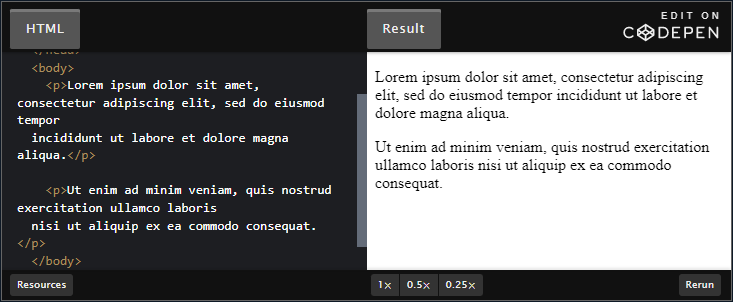
- If text is not preceded by a
<p>, then it will all clump together as one large body of text 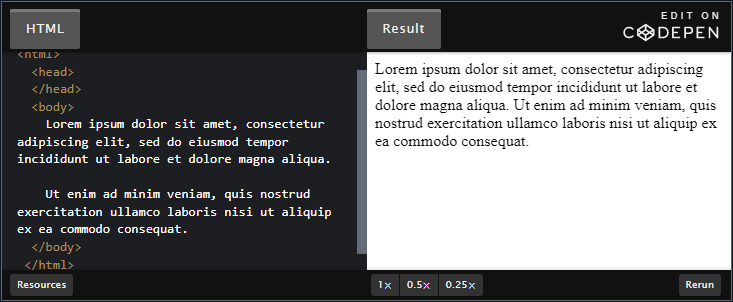
Headings
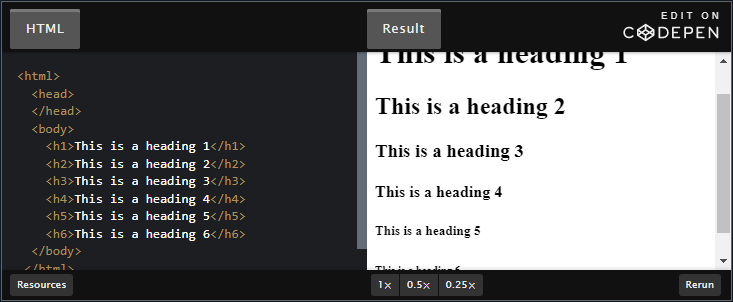
- These use the
<hx>tag wherexis the number that changes the font<h6>is the smallest font